
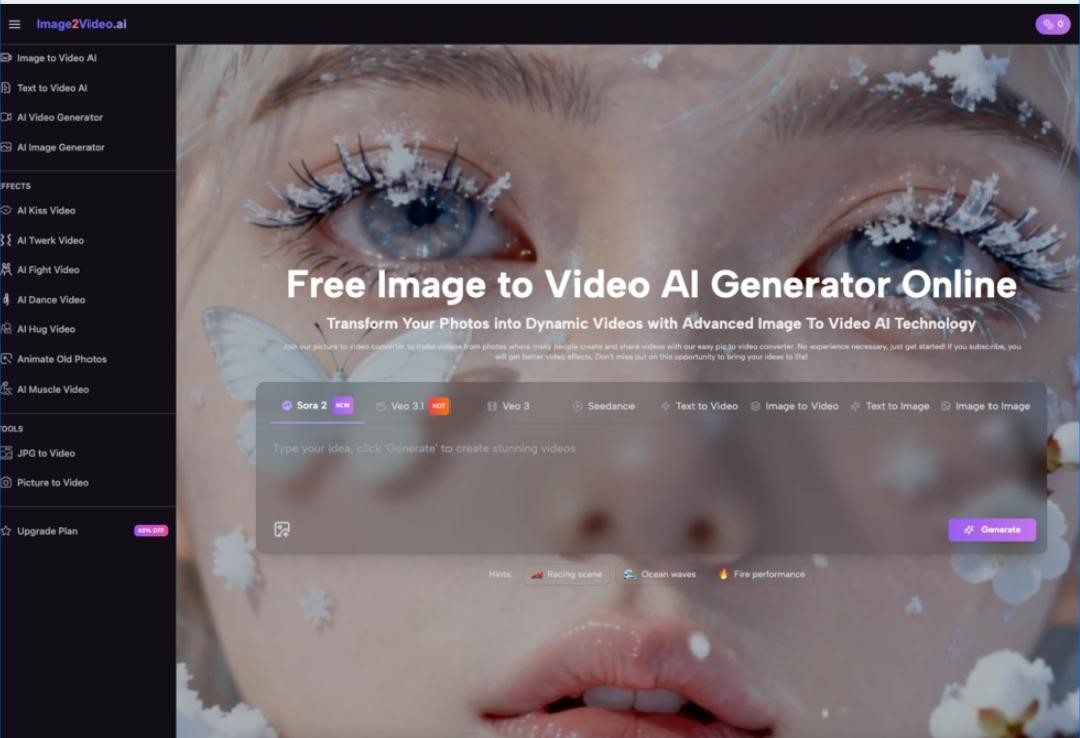
If you’re a social media manager juggling posts, Reels, and static assets, you’ve likely glanced at Photo to Video AI tools and wondered if they live up to the hype. Most articles promise “instant viral videos” or “one-click professional content,” but real user journeys look nothing like that. This piece breaks down how beginners realistically adopt tools like Image2Video, where expectations clash with practice, and what actually sticks in daily workflows.
I’ve watched dozens of first-time users test Image to Video platforms over the past few months. The biggest surprise isn’t how well the AI works—it’s how quickly users shift from “magic tool” fantasies to practical, repeatable habits. This isn’t a review; it’s an observational look at how real people start using Photo to Video AI without hype or gloss.
Hype Versus First-Use Reality: What Beginners Misjudge
Nearly every new user arrives with two assumptions:
- The AI will turn any photo into a polished, story-driven clip.
- The process will replace all manual editing work.
Both get gently corrected in the first 10 minutes.
Image to Video tools like Image2Video don’t write narratives or design compositions. They add controlled, natural motion to static frames and smooth transitions between images. For social media creators, that’s a meaningful superpower—but not the “complete content machine” marketed online.
Many users expect to upload a product shot, click a button, and get a 15-second ad with text, music, and pacing. Instead, they get a 5-second clip with subtle, clean movement: a slow zoom, a gentle pan, or a soft background shift. That mismatch isn’t a failure; it’s where realistic use begins.
I’ve seen users pause, rethink their goal, and pivot from “full ad” to “dynamic social teaser.” That small mental shift is where Photo to Video stops feeling like a letdown and starts feeling useful.
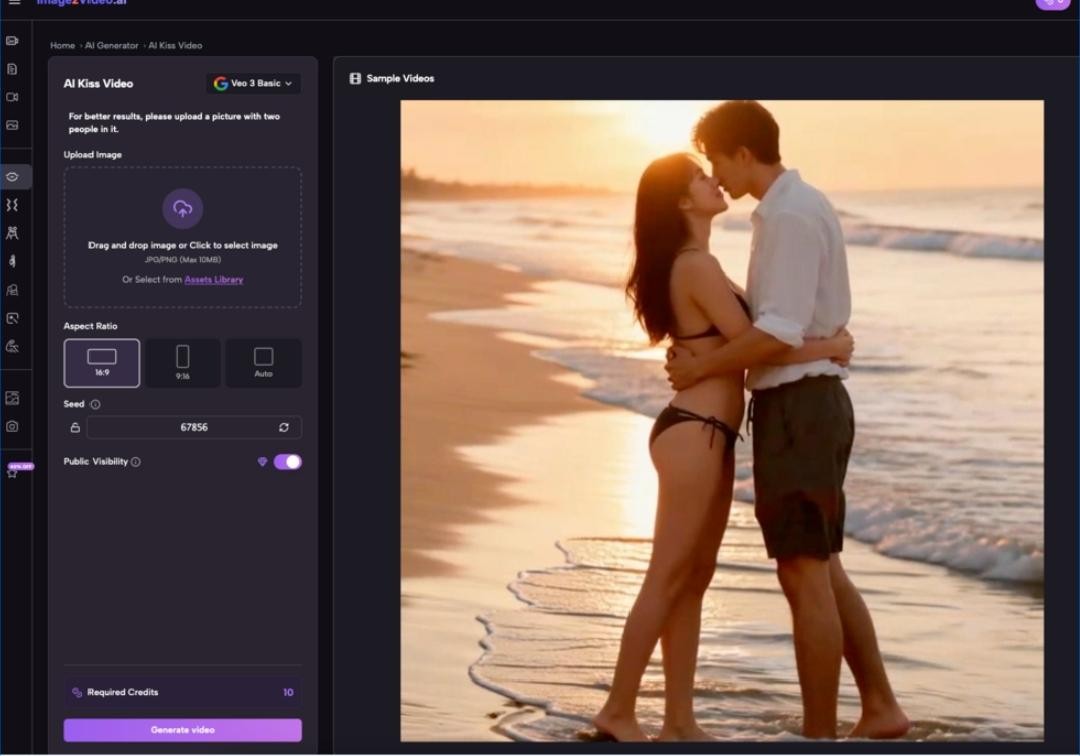
What doesn’t get talked about enough is how limited early outputs feel by design. Free tiers and lightweight models like Seedance 1.0 Lite prioritize speed and simplicity over feature bloat. Videos default to short lengths (often 5s) and fixed aspect ratios like 21:9, with seed values for consistent repeats. These constraints frustrate new users at first—but they also force focus.
Rather than overediting, beginners learn to ask: What single motion makes this static image feel alive on social media? That question becomes their north star.
A Realistic First Session With Image2Video
Let’s walk through a typical first try, unpolished and true to life. No perfect prompts, no instant wins—just how it actually goes.
Upload: The First Small Decision
Users start where they are: with a phone gallery or brand folder of JPGs, PNGs, or Webps. Image2Video accepts all common formats, so there’s no file conversion panic. Most drag-and-drop a single image first—usually a product shot, a quote graphic, or a behind-the-scenes still.
Beginners rarely test multiple images at once. They stick to one asset to reduce variables. Many hesitate before uploading, wondering if the image is “good enough.” I’ve heard questions like: Is this resolution too low? Will the AI ruin the text?
In practice, the tool handles standard social visuals fine. Higher-res images do yield cleaner motion, but you don’t need studio files to get usable results.
Generate: The Moment Expectations Adjust
Next comes the generate step. There’s no complex timeline, no keyframing, no layer stacking—exactly what sold the tool to time-strapped social media managers.
Users click Generate and wait. The AI analyzes the image, adds natural motion, and applies clean transitions. Many hold their breath, expecting something dramatic. What they get is often understated: a slight push-in, a soft horizontal pan, or a gentle fade effect.
This letdown is temporary. Within 30 seconds, most users realize: This isn’t trying to be a full edit suite. It’s turning a still into something scroll-stopping without my labor.
Some tweak prompts or seed values out of curiosity; others just accept the output. Beginners don’t deep-dive settings at first. They prioritize speed over perfection.
Export: The First Win That Sticks
Exporting is straightforward. Users download the high-quality clip and immediately test it in a social draft. That’s the moment the tool clicks: they’ve gone from static image to dynamic video in under two minutes, no editing skills required.
Many users don’t add music or text overlays on the first try. They just share the raw AI clip. Success, for beginners, isn’t perfection—it’s speed and reduced friction.
This three-step workflow (upload → generate → export) becomes muscle memory fast. What surprises users most is how little learning curve there is after the initial expectation reset.
Which Social Media Tasks Actually Get Easier
After the first session, users quickly sort Image to Video AI into “helpful” and “still needs manual work” buckets. These are the tasks that reliably improve.
Static Asset Repurposing
Social teams sit on hundreds of underused static posts: old carousels, event photos, product headers, quote cards. Photo to Video turns these into fresh short-form clips without re-shooting or re-designing.
A single static graphic becomes a 5-second Reel or Story. The AI’s natural motion makes the asset feel new again, extending its lifecycle. This is the single most valued use case among early users.
Quick Social Teasers
For event recaps, product drops, or daily reminders, users no longer need to open a full editor. A quick Image to Video clip fills content gaps when time or bandwidth is low. The output is simple but effective—far better than a static image in feeds that favor motion.
Low-Budget Content Testing
Small creators and solo managers don’t have resources for multiple edited video variants. With Photo to Video, they can test three motion styles (zoom, pan, static) in five minutes and see which performs best. This rapid iteration was previously out of reach for many.
What doesn’t get easier? Complex storytelling, branded text animations, multi-scene narratives, and audio sync. Those still require human judgment and manual touches. The AI handles the motion lift; you handle the message.
Where Beginners Still Hit Friction
No tool is seamless, and Image2Video has predictable pain points that new users encounter.
Setting Misunderstandings
Terms like aspect ratio, seed, and credits confuse non-technical users. Many ignore settings entirely at first, sticking to defaults. Only after a few uses do they experiment with 21:9 or seed values for consistent results.
Motion Control Limits
Beginners often want more dramatic movement: spins, fades, or complex camera work. But lightweight models prioritize stability over flash. Users learn to match expectations to the tool’s strength: subtle, natural motion that doesn’t distract.
Free Tier Boundaries
Free access works for basic tasks, but users quickly notice constraints: clip length, credit costs, and occasional watermark mentions. These aren’t flaws—they’re realistic boundaries of a free tool. Most users don’t mind; they just plan accordingly.
The friction isn’t deal-breaking. It teaches users to scope small: one image, one motion, one purpose. That restraint actually improves social content by keeping clips focused.
Building a Sustainable Mini-Workflow
After a week of casual use, most users settle into a reliable rhythm that fits their existing routine. It looks like this:
- Curate 3–5 underused static images.
- Run each through Image to Video with default settings.
- Pick the 1–2 clips with the most natural motion.
- Add light branding or text in a basic editor (if needed).
- Schedule or post immediately.
What began as a novelty becomes a reliable shortcut for busy social media managers. The tool doesn’t replace their creativity or strategy; it removes the tedious video-production barrier between a good static asset and a dynamic post.
I’ve noticed that users who stick with Photo to Video AI long-term aren’t chasing perfection. They’re chasing consistency: more video content, less editing time, and no steep learning curve.
Final Thought
The real value of Image to Video tools isn’t found in hype or marketing lines. It’s found in the small, daily wins for social media creators: turning a forgotten static image into a fresh clip, filling a content gap without overtime, and making video accessible to people who don’t identify as video editors.
Beginners don’t fall in love with the AI. They fall in love with the simplified workflow and the extra breathing room it gives them.
If you’re testing Photo to Video for the first time, go in with modest goals. Make a static image move. Repurpose something old. See if it fits your pace. The tools work best when you meet them where you are—not where the internet says you should be.
Need me to turn this into a shareable social media checklist for first-time Image to Video users?