
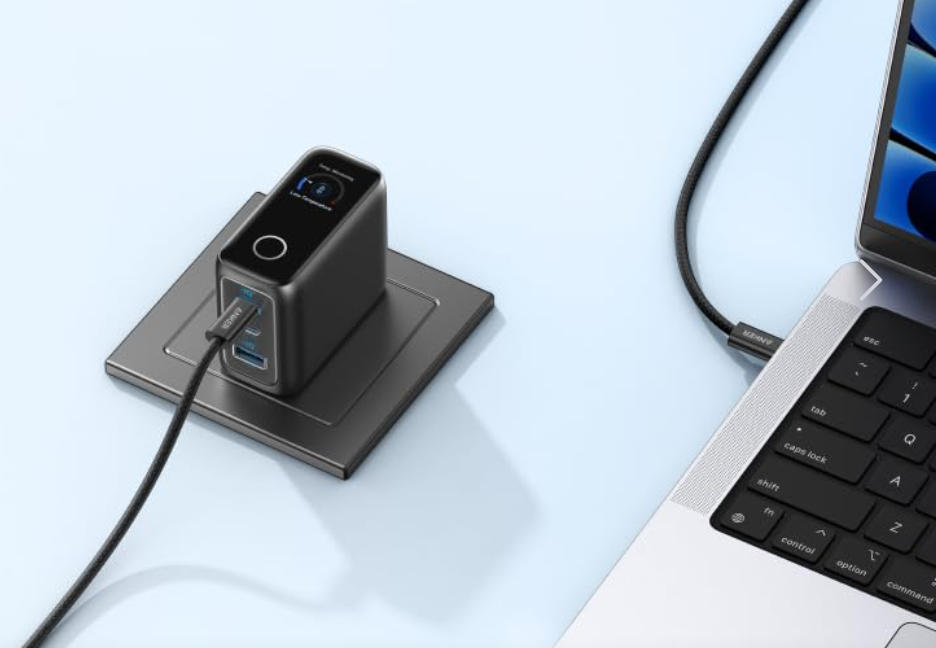
Power keeps your laptop useful for work, study, and entertainment, but charging problems often appear at the worst possible moments. What seems like a minor hiccup can cascade into lost progress, missed meetings, and unnecessary stress if you do not understand the root cause. Most issues trace back to a handful of everyday factors such as wear on cables, clogged ports, temperature, software settings, or mismatched power. With a calm, step-by-step approach, you can separate symptoms from causes and fix problems quickly without guesswork. In this article, you will learn the common issues, practical troubleshooting methods, and long-term habits to keep charging efficiently and safely.
Common Charging Issues and Their Causes
Laptop Not Charging or Not Recognizing Charger
When a laptop does not charge or fails to recognize the charger, begin by confirming a solid connection at both ends and a working wall outlet. Loose fits, bent pins, or debris in the port can interrupt power even when the indicator briefly lights up. Internal cable breaks near the strain relief often cause intermittent recognition that looks like a software glitch. If the battery icon flickers between charging and not charging, suspect an unstable connection rather than a failing battery. Consistent recognition after gently reseating and cleaning the port points to a physical cause you can address directly.
Slow Charging or Inconsistent Power Delivery
Slow charging often means the adapter wattage is insufficient for your laptop’s workload or background tasks are consuming power faster than expected. Running intensive apps while charging generates heat and forces power-sharing between the system and the battery. A worn cable or connector adds resistance, which reduces effective power and increases temperature. Environmental factors like warm rooms or poor airflow trap heat and cause the system to throttle charging for safety. Stabilizing power delivery usually requires cooling the setup, closing heavy apps, and ensuring the charger meets the laptop’s power needs.
Overheating Charger or Laptop
Heat naturally accompanies charging, but excessive warmth suggests poor ventilation or power strain. Placing the power brick on soft surfaces like blankets or inside a bag traps heat and accelerates wear. A clogged laptop vent or fan compounds the problem, especially during heavy tasks that already raise internal temperatures. Intermittent connections also produce hotspots that feel like a failing charger even if the adapter is otherwise healthy. Moving to a hard, open surface and reducing workload often lowers temperatures and restores normal charging behavior.
Battery Not Holding Charge
Batteries slowly lose capacity through normal use, but sudden drops in runtime may indicate calibration issues or repeated high-heat sessions. Frequently holding the battery at 100 percent while warm accelerates aging compared to mid-range levels. Inconsistent charge detection can arise from debris in the port or a cable that only works at certain angles. Software factors like outdated power management or firmware can misreport health and confuse charging thresholds. If calibration and port maintenance do not help, consider that the battery may be approaching the end of its life and plan accordingly.
Step-by-Step Troubleshooting Methods
Inspect the Charger and Cable for Damage
Start with a careful visual and tactile check along the entire cable length, especially near both strain reliefs. Look for kinks, soft spots, exposed wires, discoloration, or a burnt smell, which all signal urgent replacement. Flex the cable gently while observing the charging indicator for flickers that reveal internal breaks. Examine the adapter brick for cracks, bulges, or unusual warmth that persists after improving ventilation. If any of these signs appear, stop using the charger and replace it to avoid further risk.

Check Laptop Charging Port and Connectors
Shine a light into the laptop port and inspect for lint, dust, or bent contacts that can block a secure fit. Use short bursts of clean compressed air to remove debris, being careful not to insert hard tools that might damage the port. Align the connector straight and avoid sideways pressure that loosens the fit over time. Test for a firm, consistent connection by gently wiggling the plug and watching the battery icon for stability. If the port remains loose or unreliable, seek a professional evaluation to prevent worsening damage.
Test with Another Compatible Charger
Confirm whether the issue lies with the charger by testing a known-compatible alternative that meets the correct specifications. If the laptop charges normally with the second unit, the original charger or cable is likely at fault. When problems persist across multiple chargers, shift focus to the laptop port, internal power circuit, or software configuration. Keep the environment consistent during tests so changes in heat or workload do not confuse results. Consistent, stable charging with the alternate unit provides confidence to replace the failing charger without hesitation.
When to Seek Professional Help
Professional help is warranted when physical damage to the port is visible, the connector feels loose inside the socket, or sparks appear during connection. Persistent overheating that does not respond to better airflow and reduced workload also suggests deeper issues. If the laptop fails to charge across multiple compatible chargers and cables, internal power circuitry may need skilled diagnosis. Repeated crashes, sudden power-offs, or burning smells require immediate attention to protect both safety and data.
Tips to Prevent Future Charging Problems
Prevention starts with gentle handling, loose cable loops, and avoiding sharp bends near the strain relief or connector. Charge on a hard, ventilated surface and keep both the adapter and laptop clear of soft fabrics that trap heat. Periodically clean the port with short air bursts and check for fits that feel snug and straight without tension. When replacing or adding a spare, choose dependable, certified gear that meets your power needs for home, office, and travel. Anker provides a wide variety of charging cables and chargers with strong safety assurances, including a type c laptop charger that supports everyday work reliably and efficiently.
Conclusion
Most charging issues trace back to a small set of fixable causes, and a steady process reveals the right solution quickly. By inspecting hardware carefully, maintaining clean and secure connections, and keeping temperatures under control, you prevent many common failures. Matching specifications, updating power-related software, and replacing worn accessories at the first sign of trouble protects both battery health and your schedule. Simple habits like proper storage, mindful cable handling, and good airflow extend charger lifespan and device reliability. With consistent care and practical choices, your laptop will charge efficiently and safely day after day.