
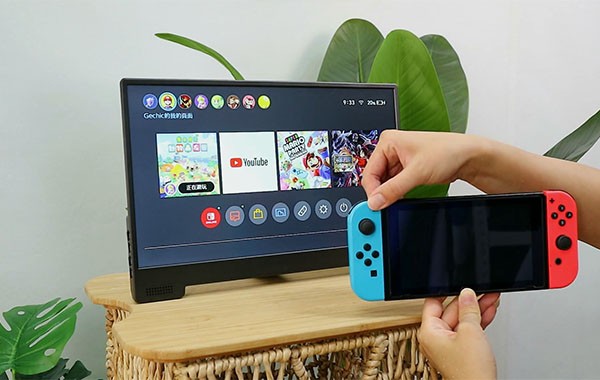
The Nintendo Switch is designed to be a versatile console. You can use it at home, on the TV or on the go wherever you need to. However, if you are looking to play your Switch with a bigger screen, a portable gaming monitor is your best option. The best portable monitors are light and produce image quality similar to what you would expect from a console while you are on the go. They can fit easily into a backpack and be placed anywhere, in the car, in a hotel room or out in the open.
That said, it’s important that your Nintendo Switch and your portable gaming monitor are properly connected. Otherwise, your experience may suffer, and you might experience lag or screen flickering. In this quick guide, we will show you how to connect your Nintendo Switch to a portable monitor.
Nintendo Switch Display Output
Before we get into the details, let’s first make sure we know how your Nintendo Switch works. The Switch has two display output modes:
- Handheld mode: This is when you directly use the 6.2 inch display of the console.
- Docked mode: In this case, your Nintendo Switch will use the HDMI cable, connected via the dock, to send video and audio signals to an external display or monitor in a maximum resolution of 1080p and 60Hz.
Portable monitors will work like an external screen, allowing you to replace your TV or regular gaming monitor when you travel. Some higher-end portable monitors, like this 120Hz gaming monitor support high refresh rates and will work with compatible devices (gaming laptops, next-gen consoles, etc.) to provide you with ultra-smooth gameplay.
For gamers and creators who need a larger display, a laptop with 18 inch screen offers an immersive viewing experience and powerful performance.
Methods for Connecting a Nintendo Switch to a Portable Monitor
There are 2 main ways you can connect your Nintendo Switch to your portable monitor.
1. Method 1: Using the Original Nintendo Dock (Most Reliable Method)
Connecting your Nintendo Switch to a portable monitor is easiest with the original Nintendo Switch dock. Here’s how it works:
Things you will need:
- Nintendo Switch and its dock
- Portable monitor with HDMI input
- Power adapter for dock and monitor
- HDMI cable
Steps:
- Plug the dock’s AC adapter into a power outlet.
- Plug in the HDMI cable connected to your dock into the HDMI port of your portable gaming monitor.
- Place the Switch into the dock until you hear a click that will let you know it is in the right position.
- Turn on the monitor, and you should see the game screen being displayed with 1080p resolution.
This is the same experience you will get with a TV, but in a smaller and portable form.
Pros:
- Full HD output (1080p)
- Lag-free, stable connection
- Compatible with any HDMI-compatible portable monitor
Cons:
- Requires the dock and the accompanying power brick to be carried
- Less convenient for travel or ultra-mobile setups
2. Method 2: Using a USB-C to HDMI Adapter (Dock-Free Setup)
If you want to travel light and don’t want to bring the full dock, the best way to connect the Nintendo Switch to a portable gaming monitor is to use a USB-C to HDMI adapter (or hub).
Things you will need:
- USB-C hub or adapter with HDMI output and PD support
- HDMI cable
- Portable monitor with HDMI input
- Nintendo Switch power adapter or a high-quality PD power bank
Steps:
- Connect the USB-C adapter to your Nintendo Switch
- Plug in the HDMI cable from your adapter to your portable monitor.
- Connect the power source to the PD input of the adapter (very important to note – if you don’t supply power, the Switch will not output video)
- Turn on the monitor, and you should see your Switch screen displayed on it.
Pros:
- Portable, travel-friendly
- Works without the official dock
- Perfect for portable setups or tight spaces
Cons:
- Requires powered USB-C adapter or PD power bank
- Low-quality adapters may not work
Recommended Features of a Portable Monitor to Pair With Nintendo Switch
Note: not all portable monitors will work well with your Nintendo Switch. Here are the key features to look for in a monitor that you want to connect to your Switch:
| Feature | Why It Matters | Recommended Specification |
| Screen Size | Bigger display enhances immersion | 13–17 inches |
| Resolution | Clearer visuals and better color | 1080p Full HD |
| Refresh Rate | Smooth gameplay (esp. for future consoles) | 60Hz minimum, 120Hz optional |
| Input Ports | Ensures compatibility with Switch | 1× HDMI or USB-C (DP Alt Mode) |
| Power Delivery (PD) | Powers both Switch and monitor | 45W or higher |
| Build & Weight | Portability on the go | <1.5 lbs preferred |
| Audio Output | For better sound options | 3.5mm jack or built-in speakers |
Monitors like a 120Hz gaming monitor or a gaming monitor for PS5 will also work great with your Nintendo Switch and will be future-proof if you want to use them with other consoles later.
Power Supply Options for Gaming On-The-Go
One of the challenges of gaming while on the go is power. You need power for the Switch and the monitor. Here are your best options for power when connecting your Nintendo Switch to a portable monitor:
- Wall Adapter: The best option if you are in a hotel or have access to an outlet.
- PD Power Bank (45W or more): For completely wireless set-ups you can use a USB-C PD power bank that will power both the Switch and the monitor.
- Car Charger with PD: Great for long road trips. Plug it into your car’s charging port and enjoy endless play time.
PD power delivery passthrough support of a portable monitor will allow you to power the Switch while being powered on a single cable. This allows you to reduce cable clutter on your set-up.
Tips for the Best Gaming Experience
Use high-quality cables: low-quality HDMI cables or USB-C cables can lead to screen flickering or complete disconnection.
- Adjust brightness: keep your monitor brightness at around 70% to help your monitor’s battery last longer.
- Enable game mode: some portable monitors have a low-latency or “Game Mode” setting to reduce input lag.
- Choose the right stand or case: use a foldable stand or a magnetic case to keep your monitor from toppling over when gaming outside.
Common Issues and Their Solutions
| Problem | Possible Cause | Solution |
| No signal on monitor | Power issue or faulty cable | Ensure both monitor and adapter are powered; use original cables |
| Flickering screen | Incompatible adapter | Use certified USB-C to HDMI adapter with PD support |
| No sound | HDMI audio disabled | Check monitor sound settings or use headphones |
| Switch not charging | Low-power source | Use PD power supply (≥45W output) |
Why Would You Want to Connect a Portable Monitor to a Nintendo Switch?
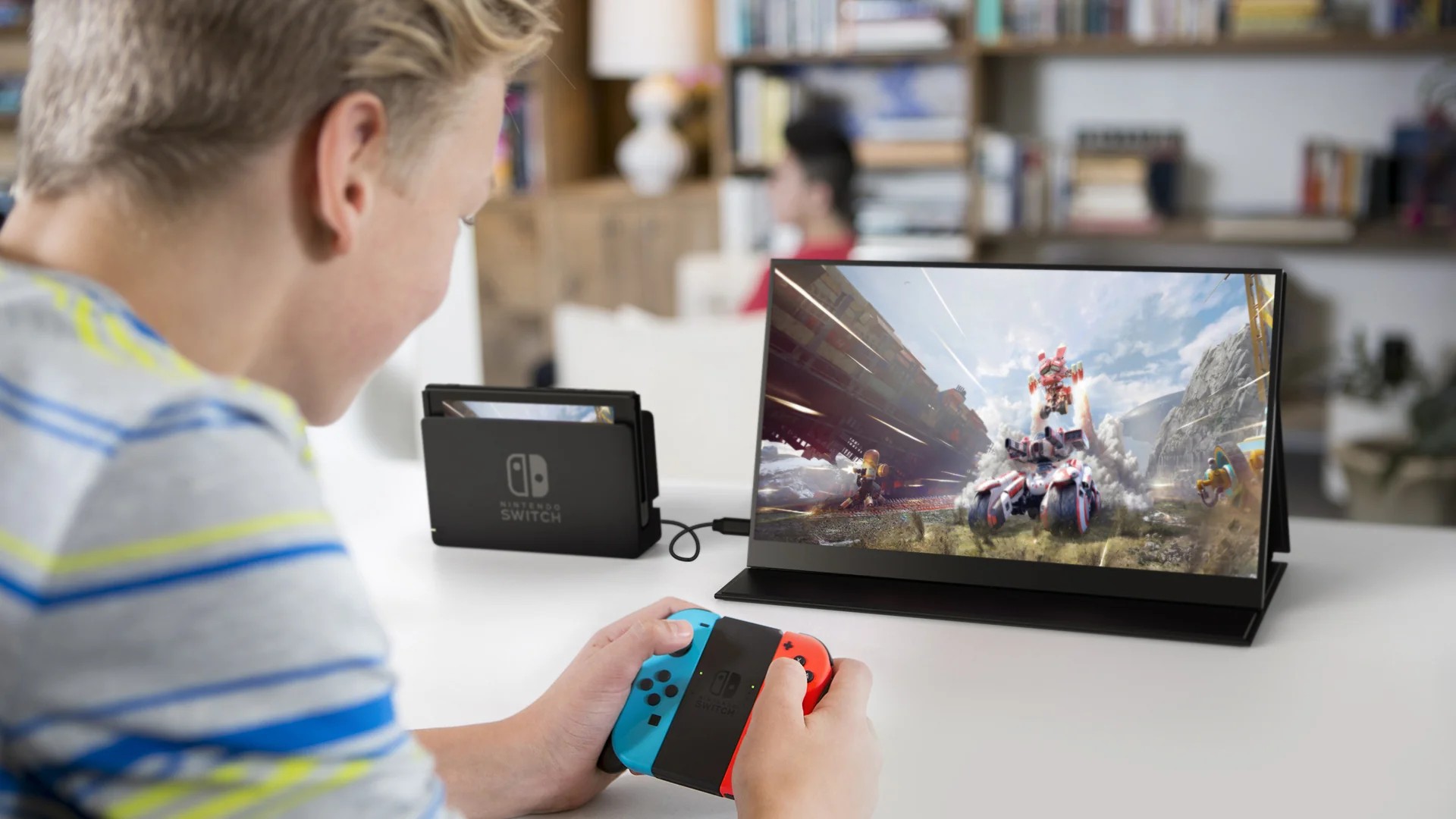
Portable monitors are built for portability and convenience. The biggest benefits, when compared to a TV or full-sized monitor, are that portable monitors:
- Fit in your backpack
- Weigh less than 2 lbs
- Require only 1 cable for both display and power
- Are compatible with laptops, consoles, and smartphones
Portable gaming monitors like a 120Hz gaming monitor or a gaming monitor for PS5 are an easy way to take your Nintendo Switch experience to the next level and are perfect for traveling, watching movies, playing games, esports events or even having some casual gaming breaks at work.
Frequently Asked Questions (FAQs)
1. Can I directly connect my Switch to a portable monitor via USB-C?
Yes, but only if the monitor has USB-C DisplayPort (DP Alt Mode) input and PD passthrough support. Otherwise, you will need to use a USB-C to HDMI adapter.
2. Will a 120Hz portable monitor make my Switch games run smoother?
No. The Nintendo Switch will only output at 60Hz, but a 120Hz gaming monitor will work with other consoles like PS5 or your gaming laptop to provide you with smoother gameplay.
3. Can I use a power bank instead of the wall adapter?
Yes, you can. Make sure your power bank supports USB-C PD and can deliver at least 45W of power.
4. Is it safe to use a 3rd party dock or adapter?
Yes, it is. We recommend only purchasing docks and adapters from trusted brands as low-quality docks can overheat or cause connection problems.
5. Do I need any special cables?
No, but we highly recommend using high-quality HDMI cables and USB-C PD cables to ensure you have a stable performance.
Conclusion
There are two ways to connect your Nintendo Switch to a portable gaming monitor, which one is better for you depends on your set-up and your travel needs. The most reliable and easiest way is to use the official Nintendo Switch dock and HDMI connection. The second, more portable method is to use a USB-C hub with HDMI output and PD support to create a travel-friendly set-up.
Pairing your Nintendo Switch with a high-performance portable gaming monitor will ensure that you are able to enjoy Nintendo’s games with crisp, vibrant graphics and smooth gameplay whether you are at home, traveling across the country or gaming at a coffee shop.